How to Check Screen Time on PC (Windows 10 & 11)
Updated September 2026
Want to check screen time on a Windows PC? Windows 10 and Windows 11 do not provide one complete screen time dashboard for most users. Microsoft Family Safety, Battery usage, battery reports, and Task Manager can provide partial information. For teams and businesses, MonitUp brings app usage, website activity, work hours, productivity reports, and optional screenshots together in one dashboard.
This guide explains how to check screen time on Windows 10 and Windows 11, what each built-in method can show, where those methods fall short, and when MonitUp is more suitable for employee monitoring and business time tracking.
Quick Answer
- For families: Use Microsoft Family Safety to review activity and set limits.
- For personal laptop usage: Use Battery usage or
powercfg /batteryreportfor rough estimates. - For session length: Check PC uptime in Task Manager.
- For businesses: Use MonitUp to review app and website usage, work hours, productivity categories, reports, and screenshots on Premium across multiple Windows PCs.
For personal use
Windows built-in tools may be enough for family controls, battery-based clues, or a basic session-length check.
For team visibility
MonitUp is better suited to app and website tracking, work-hour visibility, productivity reporting, and optional screenshots.
Windows screen time for work
Need more than a basic PC screen time check?
MonitUp helps Windows-based teams track app usage, websites, work hours, productivity trends, and screenshots on Premium—without keylogging.
Table of Contents
- What Does Screen Time on PC Mean?
- How to Check Screen Time on PC
- Method 1: Microsoft Family Safety
- Method 2: Battery Usage
- Method 3: Battery Report
- Method 4: Task Manager Uptime
- Built-in Windows Tools vs MonitUp
- Why Teams Use MonitUp
- How to Start with MonitUp
- Best Practices
- FAQs
What Does Screen Time on PC Mean?
Screen time on a PC usually means how long the computer is actively used and which applications or websites account for that time. Windows does not normally present all of this information in one personal dashboard, so the right method depends on what you want to measure.
How to Check Screen Time on Windows 10 and Windows 11
Start by identifying your goal:
- Family or child monitoring: Review activity and set limits.
- Personal usage estimates: Use battery data or uptime as rough clues.
- Business monitoring: Review apps, websites, work hours, productivity trends, and multiple PCs.
Windows can partially address the first two needs. A dedicated tool such as MonitUp is more practical for the third.
Method 1: Use Microsoft Family Safety
Microsoft Family Safety is the closest built-in option to a screen time dashboard. It is designed mainly for families and child accounts rather than employee monitoring.
What it is good for
- Viewing device and app activity for family members
- Setting daily schedules and total screen time limits
- Managing app and game limits across connected devices
How to set it up
- Open Settings on Windows.
- Go to Accounts and open the family settings.
- Add the account to your Microsoft family group if necessary.
- Open the Family Safety dashboard online or in the app.
- Review activity reports and configure screen time limits.
Use Family Safety for household controls. It is not designed for team-wide productivity reports, website tracking, or employee work-hour visibility.
Method 2: Check Battery Usage
On laptops, Windows can show which apps consumed battery power during a selected period. This can indicate recent activity, but it is not a true screen time report.
- Open Settings.
- Go to System > Power & battery.
- Open Battery usage.
- Review the apps listed for the selected period.
Limitations
- It works best on laptops, not desktops.
- Battery use is not the same as active screen time.
- It does not provide employee timesheets or productivity categories.
- It does not provide complete website-level visibility.
Method 3: Generate a Battery Report
For a more technical view on a Windows laptop, generate a battery report from Command Prompt or PowerShell.
- Open Command Prompt or PowerShell as administrator.
- Run the following command:
powercfg /batteryreport- Open the HTML report from the displayed file path.
- Review recent battery usage and device history.
This report is useful for troubleshooting and rough analysis, but it does not replace business time tracking.
Method 4: Check Task Manager Uptime
Task Manager can show how long the computer has been running since its last restart.
- Right-click the taskbar and open Task Manager.
- Open the Performance tab.
- Select CPU and find Up time.
Uptime is not screen time. It does not show whether a person was active, which apps were used, idle periods, or website activity.
For businesses, screen time alone is not enough
Remote and hybrid teams often need app usage, website activity, work-hour visibility, productivity reports, and optional screenshots—not just an estimate of how long a PC was on.
MonitUp turns Windows activity into a practical dashboard for managers without using keylogging.
Built-in Windows Tools vs MonitUp
Microsoft Family Safety
Best for: Families and child accounts
You get: Activity reporting and limits
Limitation: Not designed for employee monitoring
Battery Usage
Best for: Quick laptop checks
You get: Recent app power usage
Limitation: Only a rough proxy for activity
Task Manager Uptime
Best for: Session-length checks
You get: Time since the last restart
Limitation: No app, website, or productivity data
MonitUp
Best for: Businesses and Windows-based teams
You get: App and website activity, work hours, productivity reports, and screenshots on Premium
Limitation: Requires installation on Windows PCs
Why Teams Use MonitUp
Built-in Windows tools help with personal checks, but businesses need answers to different questions:
- Which applications and websites are used during working hours?
- When do employees start and finish their day?
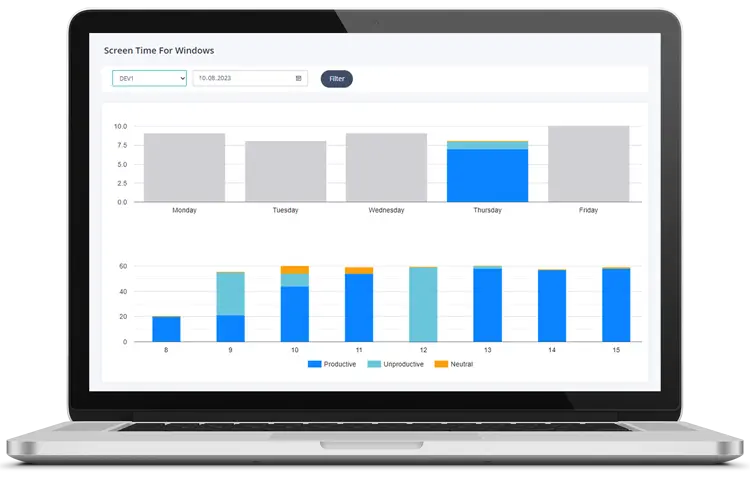
- How much computer time is productive, unproductive, or neutral?
- Which teams need coaching, better processes, or workload support?
- Are there activity patterns that may require a policy or security review?
MonitUp helps companies turn computer activity into practical reporting for remote and hybrid work. Managers can review trends instead of relying on assumptions or isolated observations.
What MonitUp shows
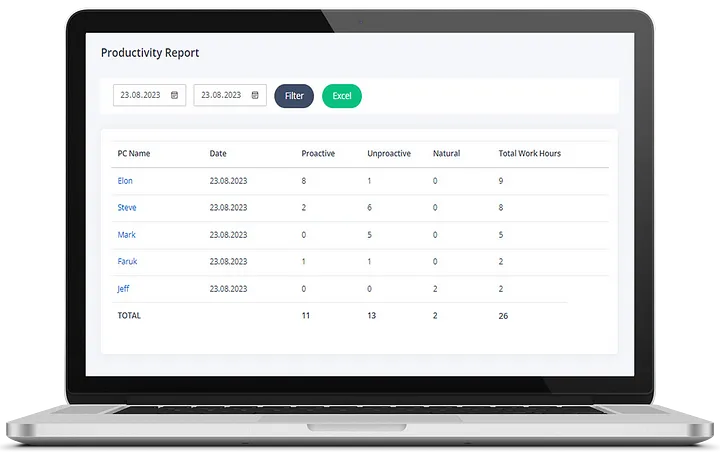
- App and website usage by employee and device
- Daily, weekly, monthly, and hourly reports
- Start and end times
- Productive, unproductive, and neutral categories
- Screenshots on Premium
- AI-powered productivity suggestions based on usage patterns
For a manager-focused explanation, read our screen time guide for business owners and IT managers. For broader workforce visibility, explore our employee monitoring software and pricing plans.
How to Start with MonitUp
- Create your MonitUp account.
- Choose the plan that matches your visibility needs.
- Install the Windows agent on the PCs you want to monitor.
- Review app usage, website activity, work hours, screenshots on Premium, and productivity reports.
- Adjust productivity categories to match each role and workflow.
See how MonitUp works before starting. Companies that require private infrastructure can also review MonitUp's on-premise employee monitoring option.
Best Practices for Using Screen Time Data
1. Define productive work for each role
A designer, developer, support agent, and accountant use different tools. Categorize applications according to the employee's role rather than applying one definition to everyone.
2. Review trends instead of isolated moments
One slow afternoon or one unusually busy day can be misleading. Weekly and monthly trends provide better context.
3. Use the data for coaching, not micromanagement
Use monitoring data to identify bottlenecks, excessive workload, distractions, and process problems. Avoid judging performance from a single metric.
4. Combine usage data with business context
A long browser session may represent research, customer work, documentation, or distraction. Interpret activity together with responsibilities and outcomes.
5. Keep reporting focused
Most managers need a small set of useful measures: total time, productive time, start and end times, top applications, and changes over time.
Benefits of Checking Screen Time on a PC
- Better visibility: Understand where computer time goes.
- Higher productivity: Identify recurring distractions and workflow problems.
- Clearer team management: Compare trends across roles and teams.
- More accurate reporting: Use activity data instead of assumptions.
- Smarter coaching: Help employees improve workflows with appropriate context.
Final Thoughts
For a rough personal estimate, Windows tools such as Family Safety, Battery usage, battery reports, and Task Manager may be enough. For employee monitoring and team-level reporting, Windows alone does not provide a complete solution.
MonitUp adds app and website activity, work hours, optional screenshots, productivity categories, and reports across multiple Windows PCs.
Turn PC screen time into team visibility
Start monitoring Windows work activity in minutes
Start a 7-day trial, install the Windows agent, and review app usage, website activity, work hours, screenshots on Premium, and productivity reports in one dashboard.
Frequently Asked Questions
Does Windows have a built-in screen time dashboard?
Not in the way most users expect. Microsoft Family Safety provides family activity controls, while Battery usage, battery reports, and Task Manager offer partial clues. Businesses generally need a dedicated tool for complete team reporting.
How do I check screen time on Windows 11?
Use Microsoft Family Safety for family accounts, Battery usage under Settings > System > Power & battery for rough app activity, or Task Manager for uptime. These methods do not provide a complete business activity report.
How do I check screen time on Windows 10?
You can use Microsoft Family Safety, battery information on supported laptops, a battery report generated with powercfg /batteryreport, or Task Manager uptime. Each method provides only part of the picture.
Can I check screen time on a PC without installing software?
Yes, but Windows built-in options are limited. They can show family activity, battery-based clues, or uptime, but they do not provide complete app, website, work-hour, screenshot, and productivity reporting.
Can I track employee screen time across multiple PCs?
Yes. MonitUp helps businesses review app usage, website activity, work hours, productivity categories, reports, and screenshots on Premium across multiple Windows computers.
Does MonitUp work on Windows 10 and Windows 11?
Yes. MonitUp is designed for Windows environments and supports productivity and activity reporting across Windows PCs.
Is MonitUp suitable for remote and hybrid teams?
Yes. Managers can review work hours, application and website activity, screenshots on Premium, and productivity reports even when employees work from different locations.
Can MonitUp be deployed on-premise?
Yes. Organizations with specific infrastructure or data-control requirements can discuss MonitUp's on-premise deployment option.