Updated October 28, 2026
A time tracker with screenshots combines activity records with captured images of the computer screen. For business owners and managers, these images can add context to application and website usage reports.
MonitUp helps businesses review activity across Windows computers. Premium includes optional screenshots alongside application usage, website/domain usage, computer start and shutdown times, and productivity categories.
What Does a Time Tracker With Screenshots Show?
Activity records and screenshots provide different kinds of information. Application and website usage reports describe recorded usage over time. Screenshots provide a visual sample of what appeared on the screen.
Reviewing both can help a manager understand a usage pattern. For example, a screenshot may provide context for an application shown in an activity report.
A captured image does not describe everything that happened before or after it. Calls, meetings, planning, and other work may take place away from the monitored computer.
When Might Screenshots Be Useful for a Business Team?
Start with a specific reporting question. Decide whether visual information is necessary to answer it.
Adding Context to an Activity Report
A manager may need more context about an application usage pattern before discussing it with the team. Available screenshots can contribute to that review, alongside the employee's explanation.
Discussing How a Workflow Is Used
Screenshots may help illustrate how a work application appears during use. Confirm that collecting visual information is appropriate for the intended discussion.
Evaluating the Reporting Scope
A trial can help determine whether screenshots provide useful context or whether application and website reports are sufficient. You can evaluate MonitUp with screenshot collection disabled.
For broader reporting needs, explore MonitUp employee monitoring software for Windows teams .
What MonitUp Reports Alongside Screenshots
| Information | What you can review |
|---|---|
| Application usage | Which applications are used, with recorded usage times and durations |
| Website/domain usage | Recorded website and domain usage times and durations |
| Computer start and shutdown times | Device usage patterns, interpreted with work schedules and other context |
| Productivity categories | Application and website activity grouped as productive, unproductive, or neutral |
| Optional screenshots on Premium | Visual context at the time of capture |
Review productivity classifications against each role's responsibilities. A website used for research or customer work may have a different relevance for another team.
Combine these reports with deliverables, quality, deadlines, and employee feedback when evaluating work.
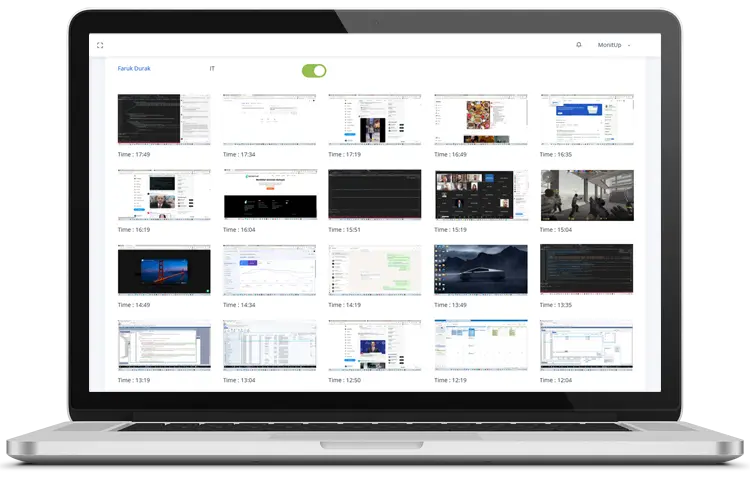
Choose Your Screenshot Collection Settings
Screenshots are optional on MonitUp Premium. Define the purpose, explain the collection to employees, and confirm the available configuration options before rollout.
Screenshots may contain sensitive information visible on screen. This can include customer documents, messages, or personal information. Reduced image resolution does not guarantee that sensitive content is unreadable.
Before enabling collection, review:
- The business question requiring visual information
- The computers included in the rollout
- The available capture settings and collection behavior
- Who should review captured images
- Your retention and deletion requirements
MonitUp does not record keystrokes. Review the actual reports and screenshot behavior during your evaluation rather than assuming that every desired restriction is available.
Read our employee monitoring and privacy guide and security and compliance information for further evaluation topics.
Evaluate the Reporting Workflow During Your Trial
- Choose a reporting question. Decide what your manager needs to understand.
- Install on selected Windows computers. Confirm that records from those computers appear in the dashboard.
- Review application and website reports first. Check whether they provide sufficient context.
- Evaluate optional screenshots if needed. Review their usefulness and the information visible in them.
- Discuss the reports with the team. Resolve unexpected patterns before drawing conclusions.
- Decide before the trial ends. Record whether the setup and reports fit your requirements.
For installation planning across distributed computers, read our remote employee monitoring guide .
Pricing and Trial Setup
MonitUp Premium costs $9 per user per month, billed monthly. Review current plans and pricing and select the number of users for your subscription.
- Create your MonitUp account.
- Select Premium and the number of users.
- Add card details to start the 7-day trial.
- Install the Windows agent and configure collection settings.
Your selected subscription is charged after the trial unless you cancel before it ends.
Organizations requiring deployment within their own infrastructure can request an on-premise assessment . Published cloud subscription prices are separate from on-premise proposals.
Frequently Asked Questions
What is a time tracker with screenshots?
It combines activity records with captured images of a computer screen. Screenshots add visual context at the time of capture, while application and website reports describe recorded usage.
Are screenshots required in MonitUp?
No. Screenshots are optional on MonitUp Premium. You can evaluate application and website reports with screenshot collection disabled.
Do screenshots prove task duration or billable hours?
No. Screenshots do not independently establish task duration, completed work, or billable hours. Review them alongside activity reports and your organization's work records.
Can screenshots contain confidential information?
Yes. They may contain sensitive information visible on screen. Reduced image resolution does not guarantee that sensitive content is unreadable.
Does MonitUp record keystrokes?
No. MonitUp does not record keystrokes.
How much does Premium cost, and does the trial require a card?
Premium costs $9 per user per month, billed monthly. The 7-day trial requires card details. Your selected subscription is charged after the trial unless you cancel before it ends.