Updated October 27, 2026
To check screen time on a Windows PC, choose the method that matches what you want to measure. Microsoft Family Safety provides screen time reports for connected family accounts. Battery settings show power usage, while Task Manager shows system uptime. These tools measure different things.
This guide covers Windows 10 and Windows 11, explains the limits of each method, and shows when business owners need application and website reports across multiple Windows computers.
What Does Screen Time on PC Mean?
People use “screen time” to mean several things: device usage, time in applications, time on websites, or simply how long a computer has been running. These are different measurements.
For example, a computer can remain running while nobody uses it. An application can consume battery power in the background. Neither number independently tells you how long someone actively worked.
How to Check Screen Time on Windows 10 and Windows 11
Start with the question you want to answer:
- How long did a family member use a connected device? Start with Microsoft Family Safety.
- Which applications consumed battery power? Review the laptop's battery settings.
- What does the laptop's battery history show? Generate a battery report.
- What is the computer's system uptime? Check Task Manager.
- Which applications and websites are used across company PCs? Evaluate a business reporting tool such as MonitUp.
Method 1: Use Microsoft Family Safety
Microsoft Family Safety allows family organizers to review activity from connected family devices. Screen time reports include daily and weekly device usage information.
How to Review Family Screen Time
- Sign in to Microsoft Family Safety with the family organizer's account.
- Select the family member whose activity you want to review.
- Make sure the Windows device is connected to Family Safety and activity reporting is enabled.
- Open the available Windows activity or screen time report. In the app, screen time reporting may appear under Today > Screen time > Devices.
- Review the available device and application usage information.
Reports depend on the connected account, device, and reporting settings. Web and search reporting also has supported-browser and sign-in requirements.
Family Safety is intended for family management. For company computers, evaluate a business reporting workflow separately. See Microsoft's activity reporting instructions .
Method 2: Check Battery Usage on a Windows Laptop
Battery settings help you investigate power consumption. The available information varies by Windows version and hardware.
On Windows 11
- Open Settings.
- Select System > Power & battery.
- Expand Battery usage.
- Review the available usage period and application information.
On Windows 10
Open Settings > System > Battery. On supported laptops, look for the application battery usage view. Labels and available details may differ between versions.
What this tells you: which applications consumed battery power during the available reporting period.
What it does not establish: complete application usage time, website history, employee attendance, or work quality. Background activity can consume power even when an application is not being actively used.
Method 3: Generate a Windows Battery Report
A battery report provides technical information about a laptop's battery usage and capacity. Use it for battery investigation rather than treating it as a screen time tracker.
- Search for Command Prompt in the Start menu.
- Right-click it and select Run as administrator.
- Enter this command:
powercfg /batteryreport- Note the HTML report location displayed in the command window.
- Open that file in your browser.
- Review the available battery capacity and usage sections.
This report does not provide a breakdown of employee tasks or website usage. See Microsoft's powercfg documentation for command details.
Method 4: Check Task Manager Uptime
- Press Ctrl + Shift + Esc to open Task Manager.
- Expand the view if necessary, then select Performance.
- Select CPU.
- Find the Up time value.
Uptime is a system runtime counter. It is not a measure of active screen time, application usage, or employee working hours.
Windows startup behavior can also affect how people interpret this counter. Avoid using it as a daily attendance or productivity report.
Which Windows Screen Time Method Should You Use?
| Method | Useful for | Main limit |
|---|---|---|
| Family Safety | Connected family device and application activity | Requires family setup and reporting settings |
| Battery usage | Application power consumption | Power consumption is not active usage time |
| Battery report | Battery capacity and usage history | Does not provide application and website time reports |
| Task Manager uptime | System runtime | Does not measure a person's activity |
| MonitUp | Business activity reporting across Windows PCs | Requires an account, subscription, and Windows agent installation |
Comparing options for a Windows-based team? Read our comparison of Windows screen time tools for teams to see how MonitUp, Time Doctor, Hubstaff, and RescueTime differ in productivity reporting, screenshots, and team management.
For Business Owners: How to Review Screen Time Across a Windows Team
Checking one computer is different from reviewing activity across a business. Managers may need to understand which applications and websites are used across company PCs, how patterns change, and whether employees need better tools or training.
MonitUp collects Windows activity and presents reports for business review. Its capabilities include:
- Computer start and shutdown times
- Application usage times and durations
- Website/domain usage times and durations
- Productivity categories and reporting
- Optional screenshots on Premium
MonitUp does not record keystrokes. Screenshots are optional and should be evaluated against your reporting needs.
For a detailed evaluation workflow, read our laptop activity guide for business owners and IT managers .
If you are starting with app and website usage visibility for a small Windows team, explore our Screen Time for Windows product page to learn about usage reports, productivity categories, and the Windows setup process.
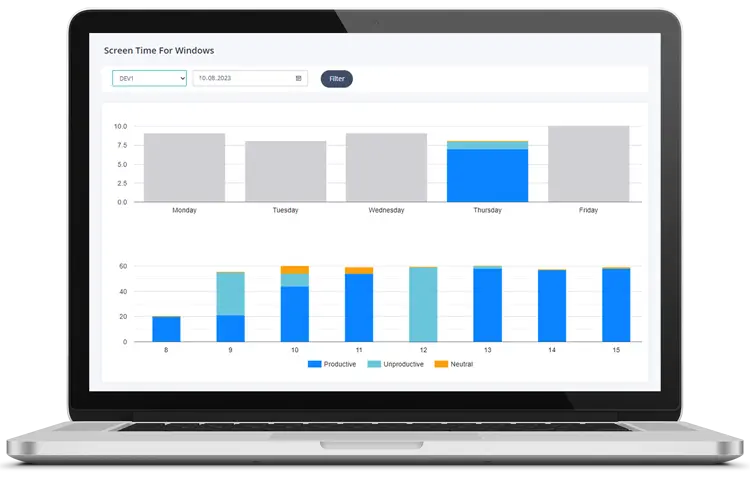
How to Start with MonitUp
- Create your MonitUp account.
- Select your package and the number of computers.
- Add card details to start the 7-day trial.
- Install the Windows agent on the selected computers.
- Review collection settings and productivity categories.
- Check whether the reports answer your business questions.
Premium costs $9 per PC per month. Your selected subscription is charged after the trial unless you cancel before it ends. Review current plans and pricing before starting.
Organizations requiring deployment within their own infrastructure can review the on-premise employee monitoring guide . On-premise deployment requires a separate assessment and proposal.
How to Interpret Screen Time Data
Separate Device Activity from Work Outcomes
Meetings, calls, reading, and planning may happen away from the computer. Recorded activity does not independently establish attendance, effort, or work quality.
Review Categories Against Each Role
A website used for research by one team may be unrelated to another team's responsibilities. Review classifications before using reports in management discussions.
Use Patterns to Start a Conversation
A change in application usage can suggest a question about training, access, or workflow. Discuss the explanation with employees before deciding what action to take.
Frequently Asked Questions
How do I check screen time on Windows 11?
Use Microsoft Family Safety for screen time reports from connected family accounts with activity reporting enabled. Battery usage appears under Settings > System > Power & battery, but power consumption is not the same as screen time.
How do I check screen time on Windows 10?
Use Microsoft Family Safety for connected family activity reports. Supported laptops also provide battery information under Settings > System > Battery. Task Manager shows system uptime, which does not measure active screen time.
Is Task Manager uptime the same as screen time?
No. Uptime is a system runtime counter. It does not show how long a person actively used the computer or which applications and websites they used.
Does a Windows battery report show application screen time?
No. The powercfg /batteryreport command generates battery usage and capacity information. It does not provide an application and website time report.
Can I review employee activity across multiple Windows PCs?
Yes. MonitUp reports computer start and shutdown times, application usage, website/domain usage, productivity categories, and optional screenshots on Premium across monitored Windows computers.
Does MonitUp's 7-day trial require a credit card?
Yes. Select a package and provide card details to start the trial. Your selected subscription is charged after the trial unless you cancel before it ends.